PS4 Account Adding Guide
Purchased Usage Type First
This page applies only to orders matching the console and usage type in the title. Instructions for a primary account, playing on the provided profile, and playing on your own profile are not interchangeable. If a step conflicts with your order guide, stop and contact Instagram support.
This guide applies only if your order’s platform and the usage option you purchased match. PS4, PS5, primary account, and other options are not considered the same; follow the current delivery guide for your order. Do not repeat a step that has already failed.
PS QR support: If QR login or manual account addition is required, contact the UcuzGames Instagram support account listed in your delivery guide. Use the Contact channels page for the current account link. Do not send the QR image, the number beneath it, or the login code to Ugi chat.
This guide is for the new user / account addition flow on a PlayStation 4 console. Sony’s interface may be updated.
WARNINGS
- In step 4, use Manual Login; one-time or guest login is prohibited.
- Account security and terms of use depend on the order’s delivery guide. If you have an issue, request a review for your order.
- Log in only through PlayStation; using a phone/browser is prohibited.
- After reaching step 6, send your order number and the account name provided to you to UcuzGames Instagram support.
- If you delete the added PSN account, you will lose access to the games.
- Follow the disconnect from the internet instructions after opening the game.
1. Turn on the console
Turn on your PS4 and select New User.
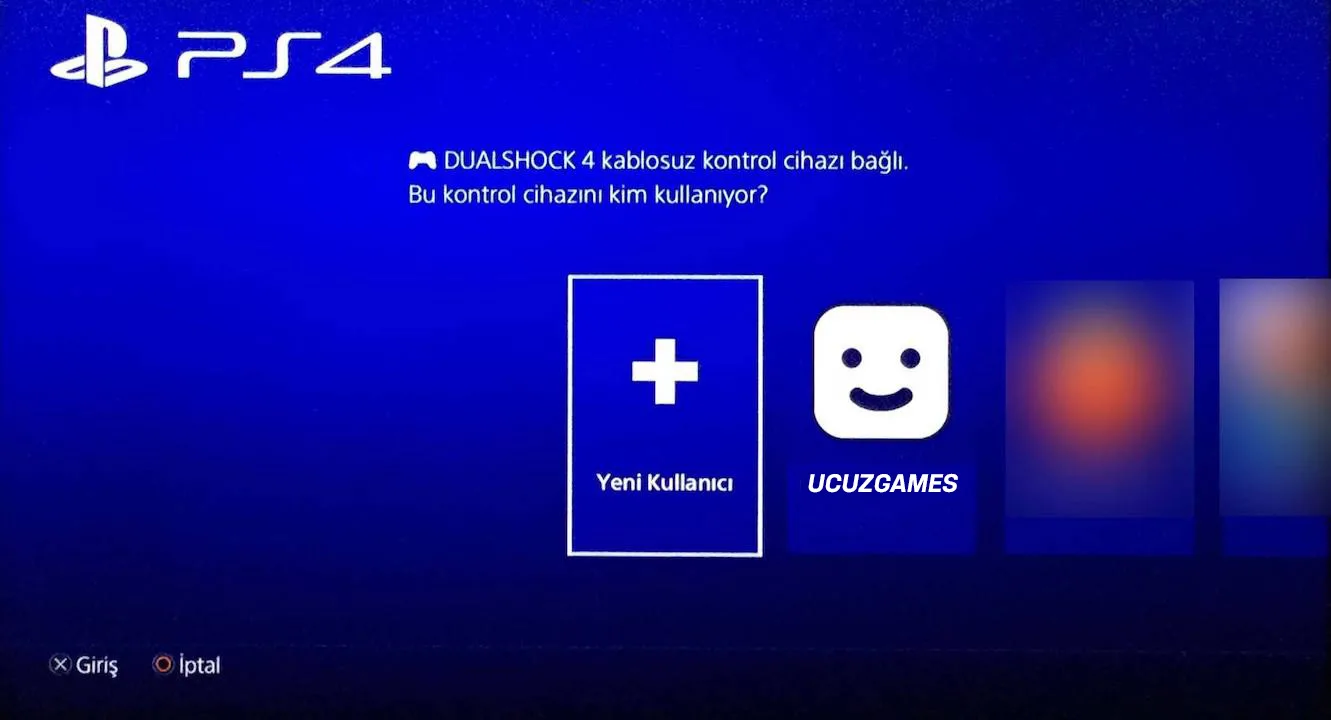
2. Create a user
Select Create User.
3. Agreement
Accept the User Agreement.
4. Continue
Press Next.
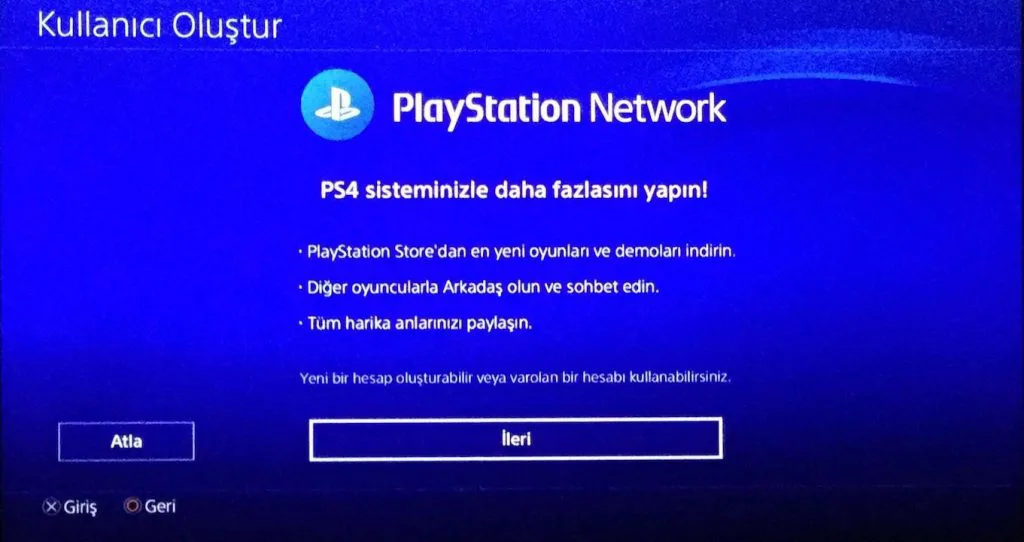
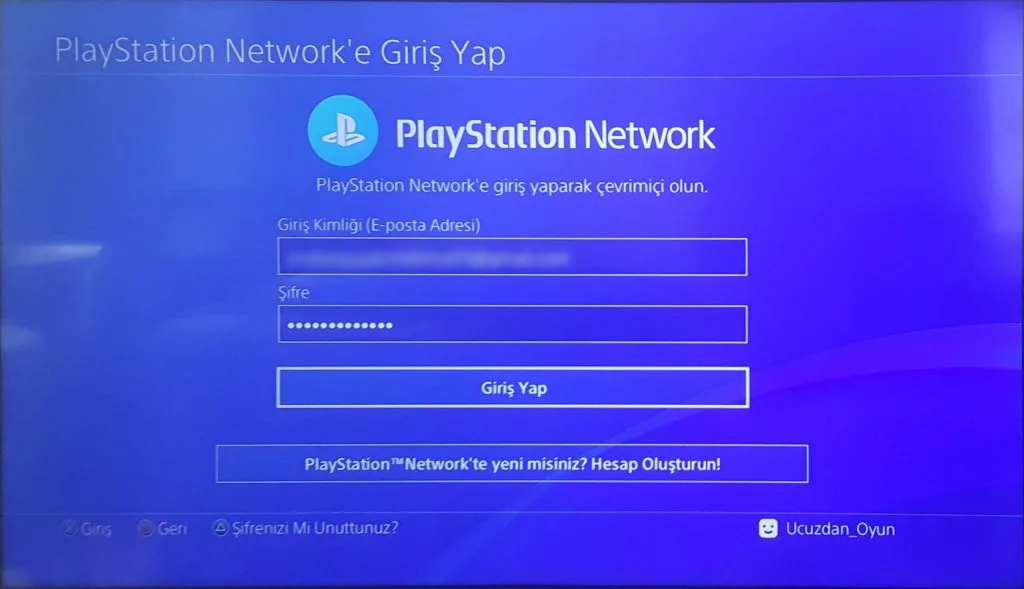
5. Login details
Enter the account details sent by email and press Sign In.
If a code screen appears, send UcuzGames Instagram support your order number and the address included in the email.
6–8. Done and account added
Complete the Done and confirmation steps in order. A notification will appear once the account has been added to the console.
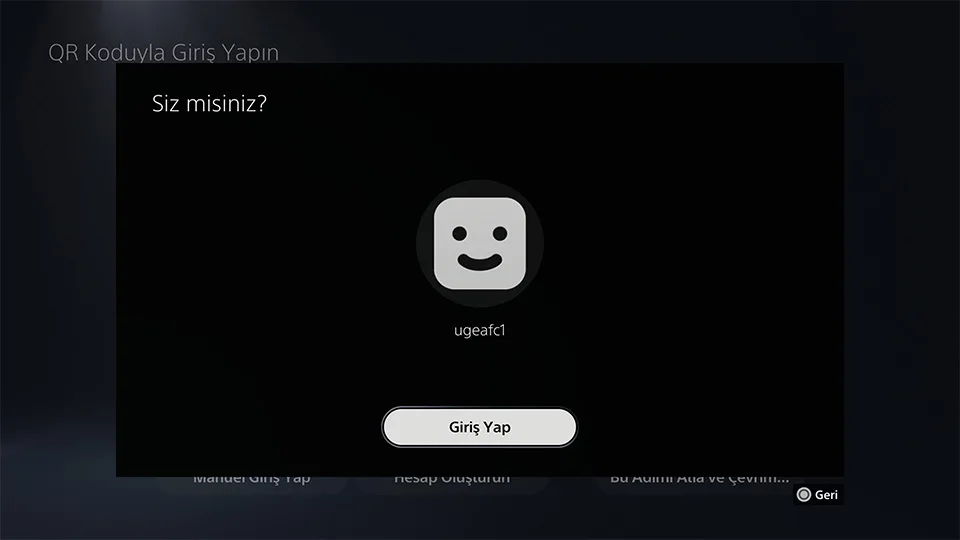
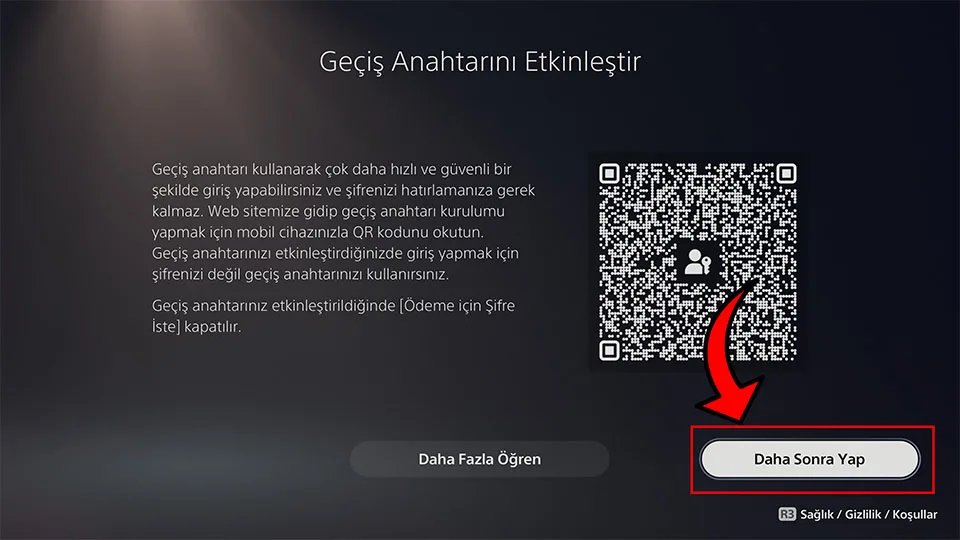
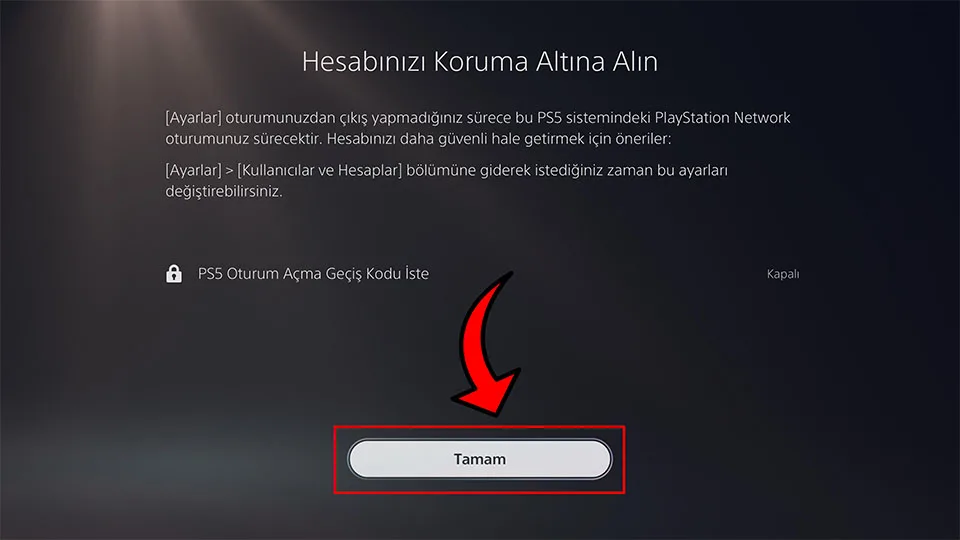
Note: If you see the “Signed in to the account” warning, do not try to sign in again; switch back to your personal account and contact customer service. If there is no warning, continue with the guide.
9–11. Download and internet
Find the game you purchased in your library and start downloading it; then switch to your own account and wait until the download is completely finished.
Once the download is finished, switch to the provided account and launch the game; disconnect from the internet as soon as the game opens. Leaving the internet connected may cause connection issues.
13. License warning
If you see a license or lock warning, do not repeatedly turn the internet off and on. Refer to your console, the usage option you purchased, and the exact warning; do not repeat the same failed step. If the issue persists, request an order review through your existing support request.
- Do not reconnect to the internet while the game is open.
- Account security and terms of use depend on the order’s delivery guide. If you have an issue, request a review for your order.
For questions, use the Support Center or Support Requests.