PS Account Adding Guide
This guide is prepared for adding the purchased PlayStation Network (PSN) account to the console and the game download process. The Sony interface may be updated; steps are provided in general terms.
WARNINGS
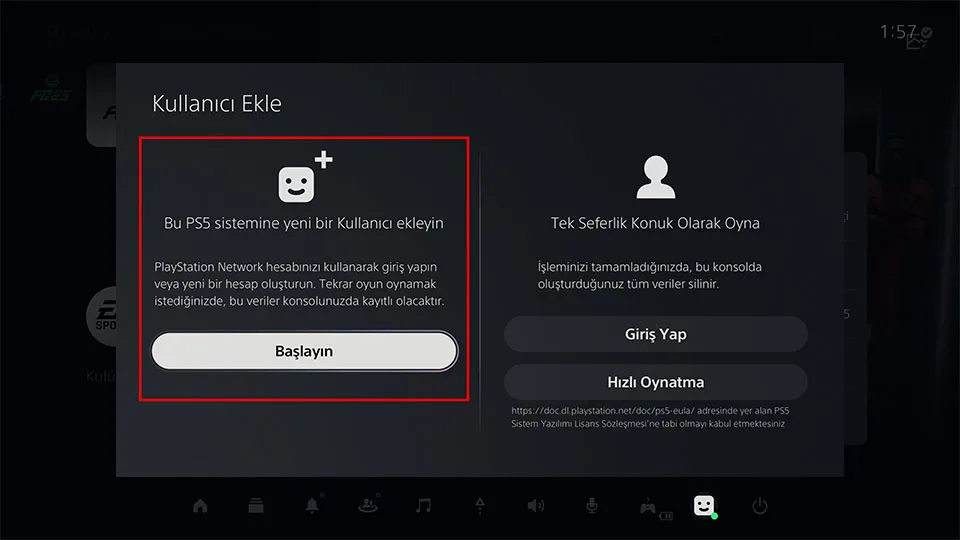
- In step 4, enter from the Manual login section of the account. Do not log in as a one-time or guest login under any circumstances.
- If you log in or out incorrectly, a new login can be performed after 1 month.
- It is forbidden to change the information of the provided PSN account.
- Otherwise, the warranty will be void and legal action may be started.
- Login should be performed only via the PlayStation console; logging in from a phone or browser is forbidden.
- If you exit without informing or if you are expelled due to violating rules, a new code can be obtained after 1 month.
- After you reach up to step 6 in the guide, contact customer service and provide your order number and the account name sent by e-mail.
- If you delete the added PSN account, you will not be able to access the games.
- If you have problems with the account or games, you can contact our support line at any time.
- After opening the game, you need to disconnect from the internet.
Enjoy your fun.
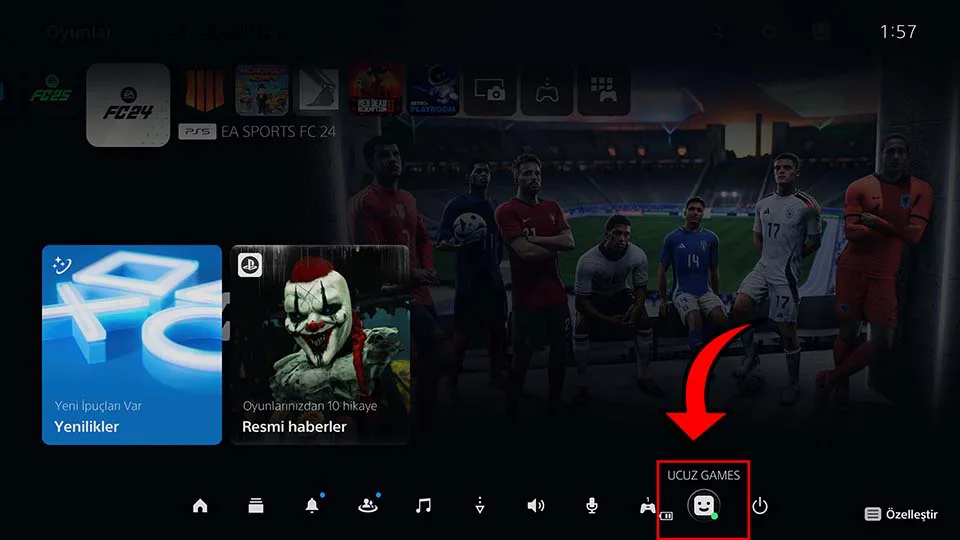
1. PS button and profile
Press the PS button on the controller and click on the user profile as shown below.
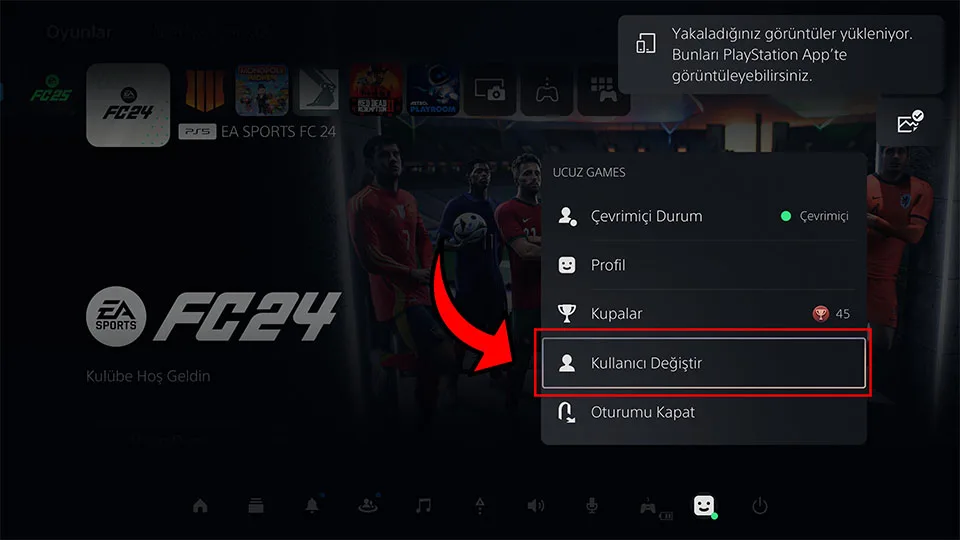
2. Change user
Press Change User.
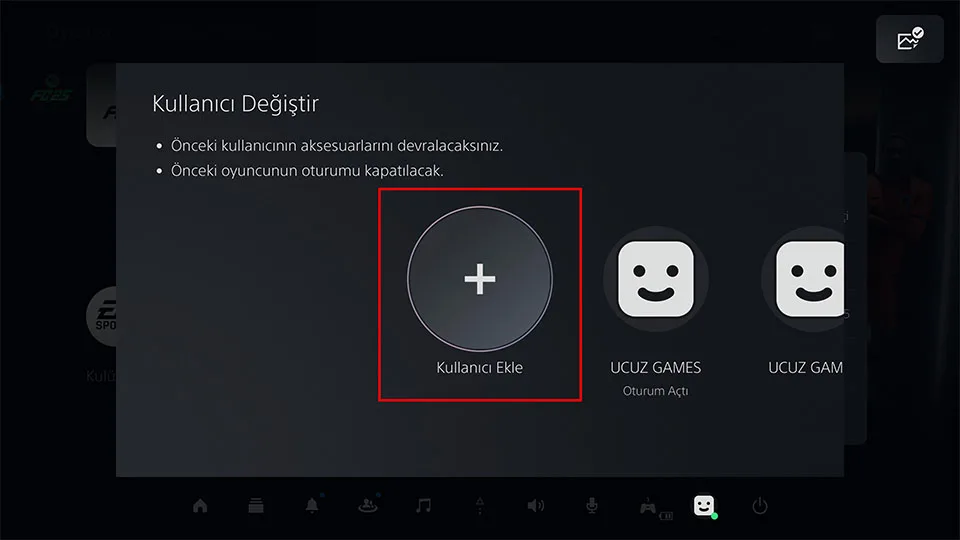
3. Add user
Press Add User.
4. Manual login (left button)
Press the left button as shown below. Do not click the right one — press and sign in from the left.
Do not use Guest or One-time login.
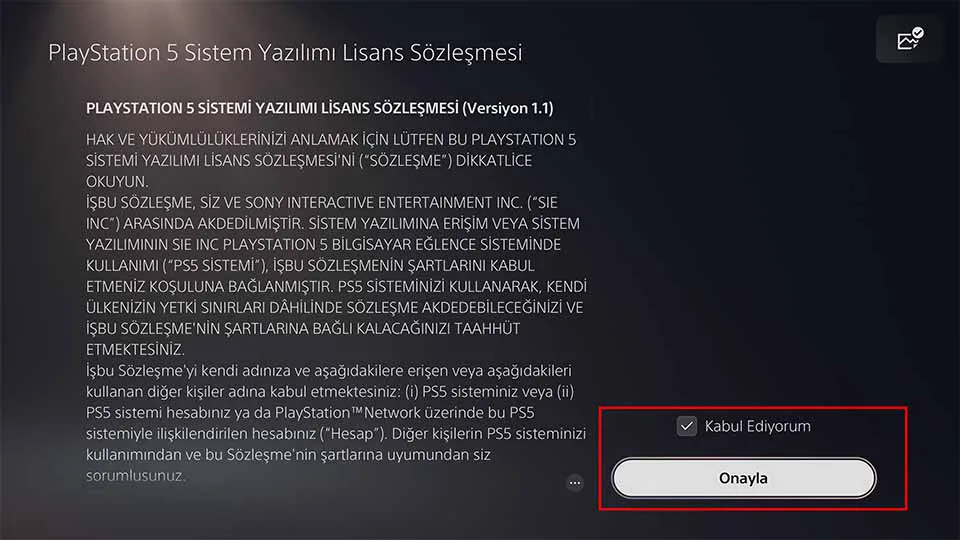
5. Agreement
Accept and confirm the agreement.
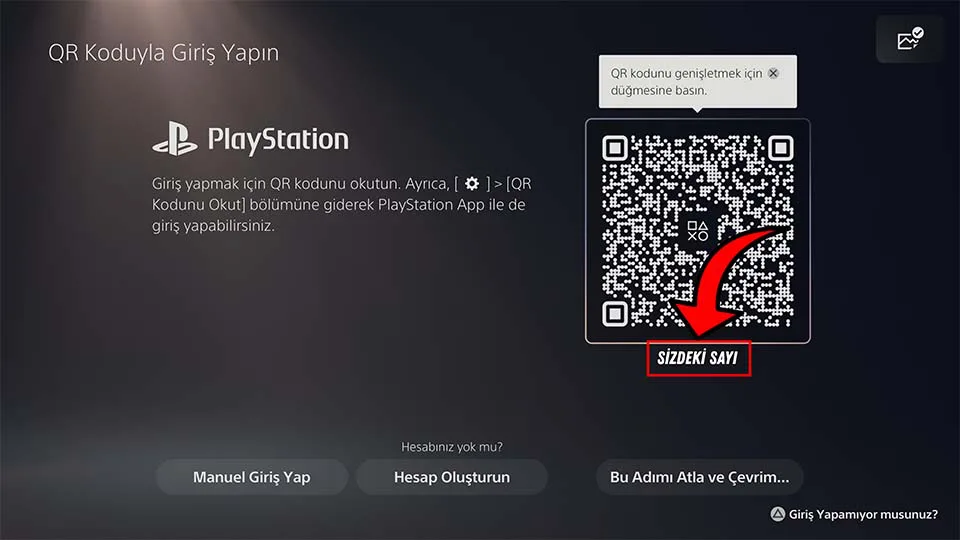
6. Verification code
Please convey the number in the marked field to our customer service (together with your order number and account name). Our agent will log into the account with this code.
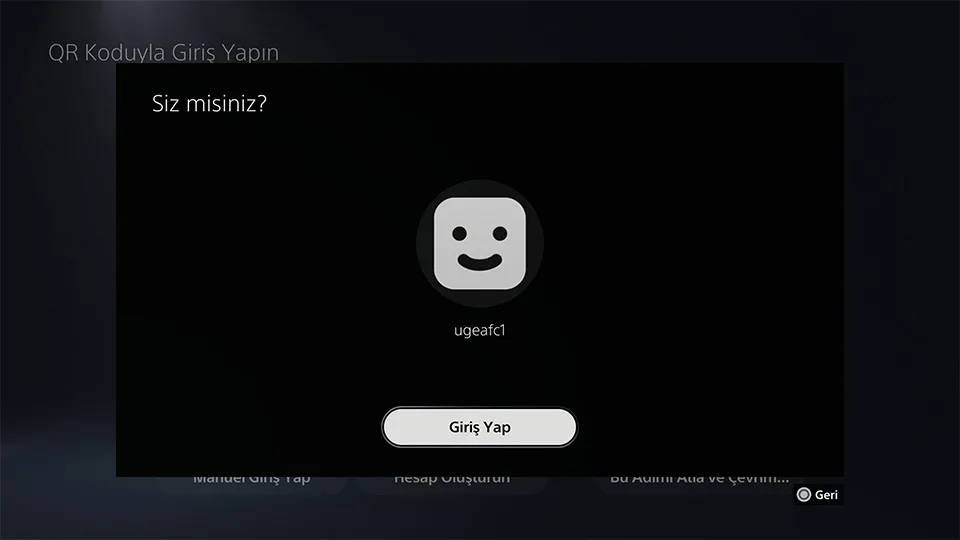
7. Login confirmation
When login is successful, you will receive the following notification; press the Log In button.
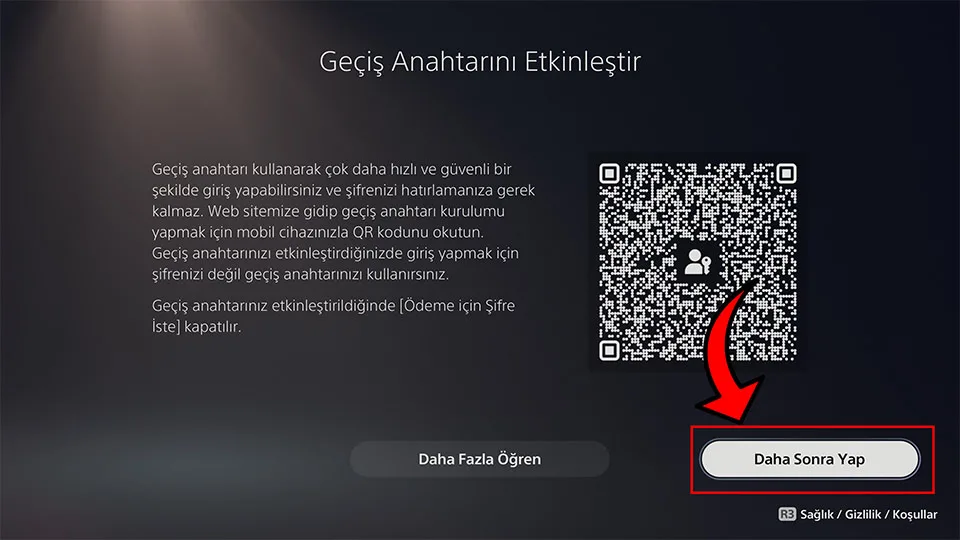
8. Later
In this step, click the Do It Later button.
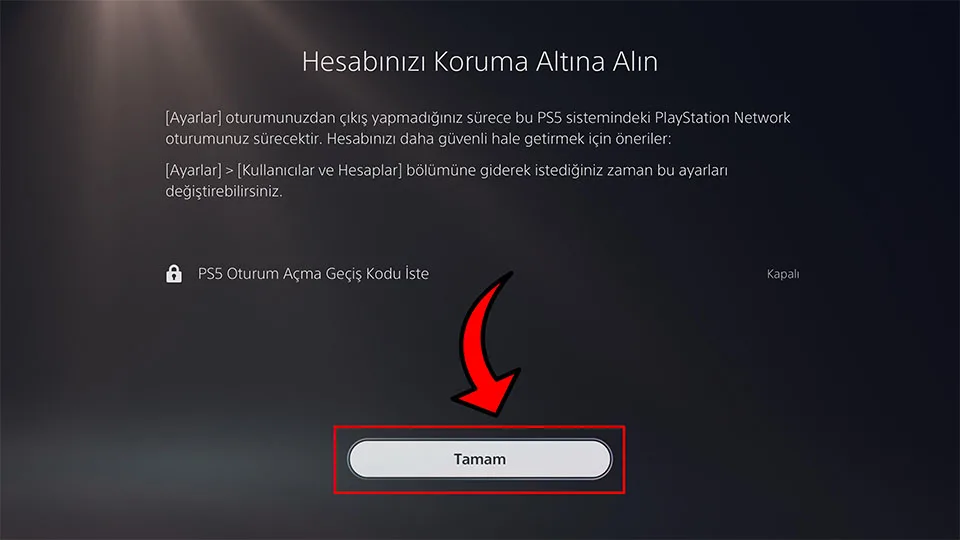
9. OK
Without changing any settings, simply press OK.
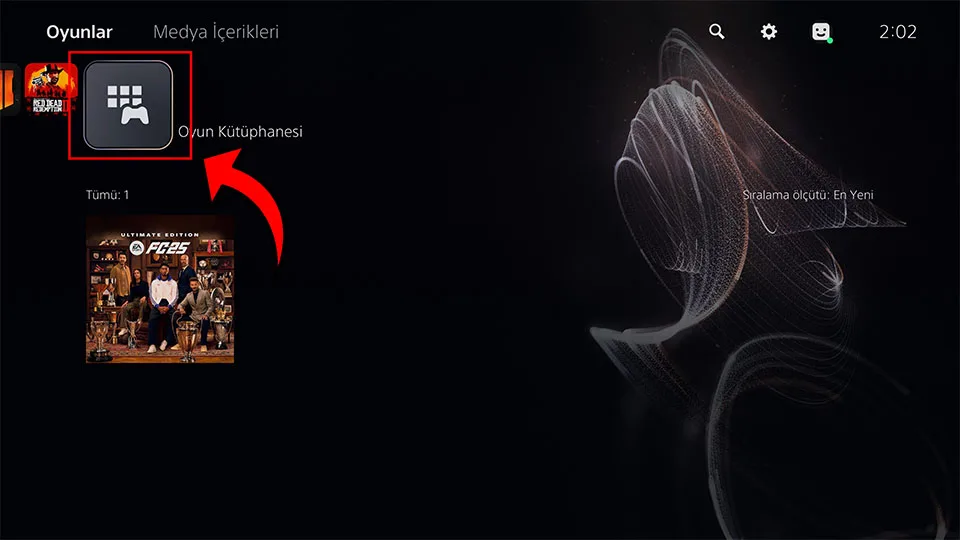
10. Game library
From the main menu, click Game Library on the far right. In the library, start downloading the game you purchased from the Collections section.
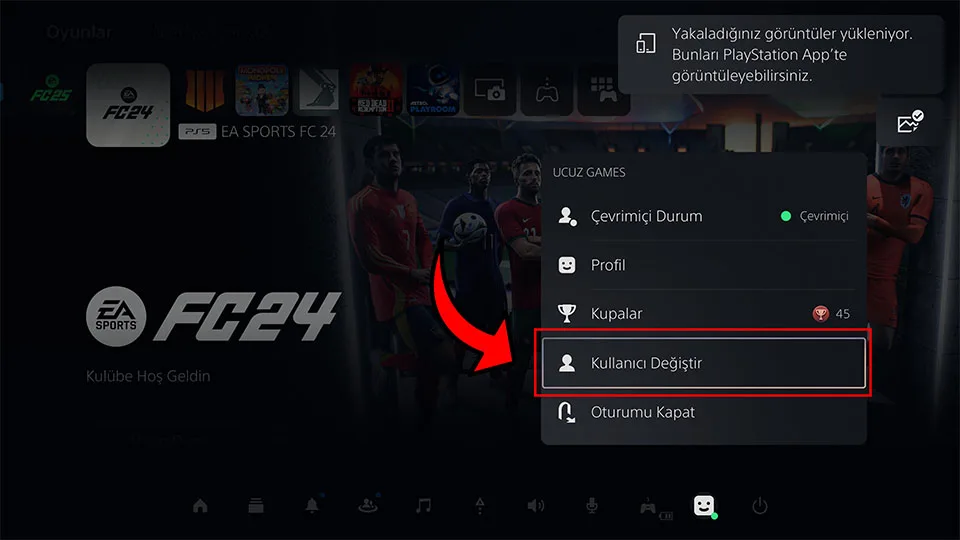
11. Return to your own account
After starting the download, press Change User and switch to your own account. Stay in your own account until the download is fully completed.
12. Opening the game and internet
- After the download is completely finished, switch to the provided account and open the game.
- After successfully opening the game, keep the game running in the background and go to Settings -> Network to turn off the internet and re-enter the game.
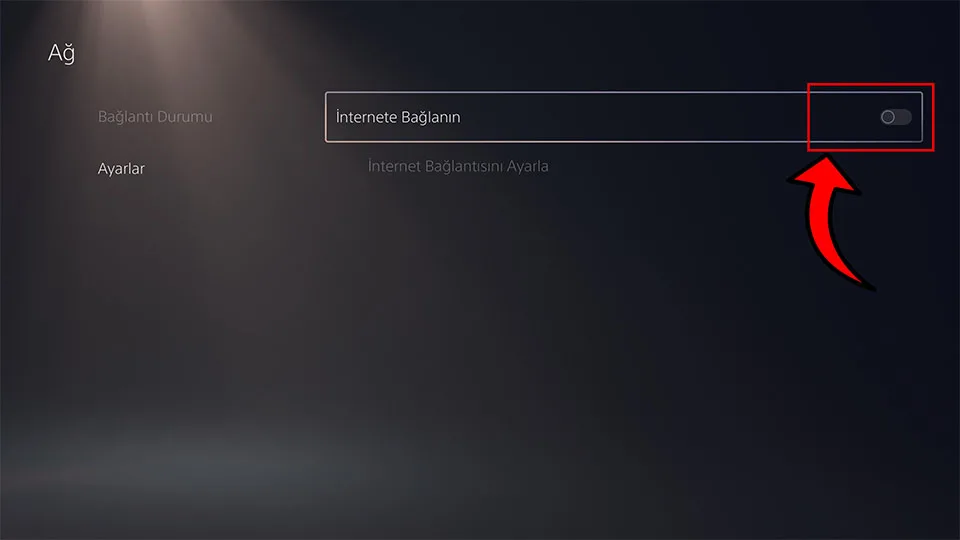
- Do not re-enable the internet while the game is running.
- If the internet is on, you will be repeatedly kicked from the game; in case of detection, the warranty will be void.
- In case of a license warning, you can briefly turn the internet on and off.
- If there is a lock or license error, you may try loading the license and entering the game with the internet open after 20–25 minutes. License error may be temporary (may resolve within about 0–3 hours).
These steps are for smooth playing; non-compliance may not be covered by the platform.
Have fun
If you have questions, you can write to us via the Support Center or Support Requests.